Apple Intelligence has been baked into eligible iPhones since iOS 18.1 and is now part of iOS 26. As more companies integrate AI into their operating systems, users are also looking for ways to control or disable these features, just as many Android users choose to turn off Gemini on Android when they prefer a traditional experience.
Quick Answer
How do you turn off Apple Intelligence? Use the master toggle:
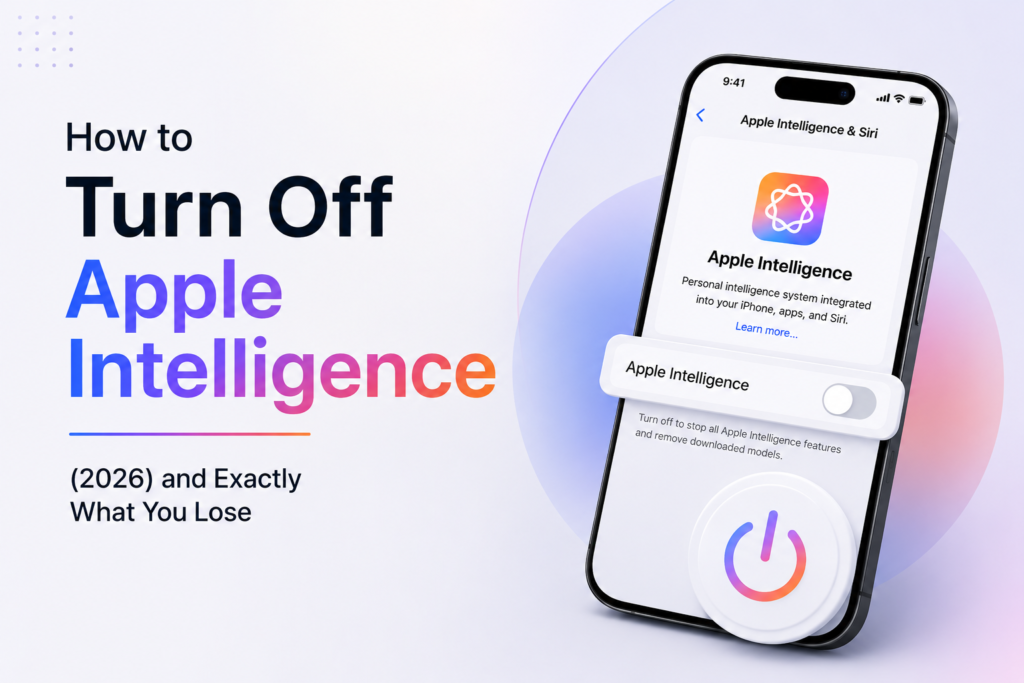
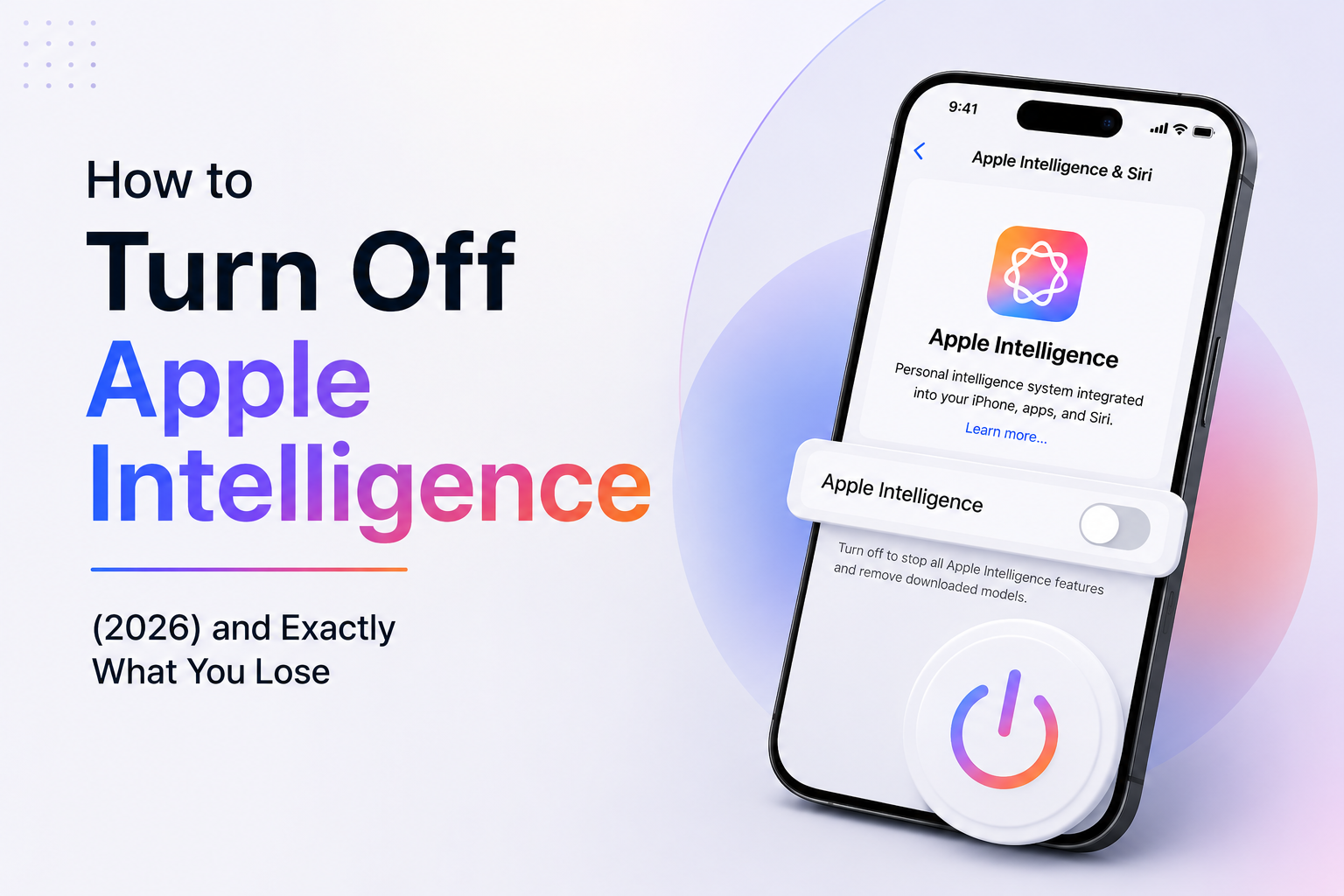
- iPhone / iPad (iOS 26 / iPadOS 26): Settings → Apple Intelligence & Siri → switch off Apple Intelligence → tap Turn Off.
- Mac (macOS 26): System Settings → Apple Intelligence & Siri → switch off Apple Intelligence → confirm.
This disables all AI features and removes the on-device models (freeing up to ~7GB). To keep some features, skip the master toggle and disable individual ones instead — notification summaries under Settings → Notifications, ChatGPT under Apple Intelligence & Siri → Extensions.
What you lose: Writing Tools, notification and Mail summaries, priority notifications, Genmoji, Image Playground, Visual Intelligence, Clean Up in Photos, Smart Reply, and ChatGPT-in-Siri.
What you keep: the entire normal iPhone experience and classic Siri.
Can You Actually Turn Off Apple Intelligence?
Short answer: Yes. As of iOS 26, Apple Intelligence has a real master off switch, and you can also disable features one at a time.
This is where Apple differs from Google’s Gemini or Meta AI. Unlike Apple, some users find it more difficult to completely disable these assistants, especially on messaging platforms like Meta AI on WhatsApp. When you flip it, the on-device models are deleted, reclaiming storage, and every Apple Intelligence feature disappears together. You can turn it back on any time from the same screen (the models then re-download).
Two things decide whether you’ll even see the setting:
- Your device must support it. Apple Intelligence runs only on iPhone 15 Pro and newer, and M1-or-later iPads and Macs. If your iPhone doesn’t support it, there’s nothing to turn off (though a leftover Siri or app icon can linger — more on that below).
- You must be on a current OS. In iOS 26 the settings pane is named Apple Intelligence & Siri. Older iOS 18 guides point to different paths, so ignore those if you’re on 26.
| You want to… | Is it possible? | How |
|---|---|---|
| Turn off everything at once | Yes | Apple Intelligence & Siri → master toggle off |
| Disable single features | Yes | Per-feature settings (Notifications, Extensions, Screen Time) |
| Free up storage by removing it | Yes (~7GB) | Master toggle off removes on-device models |
| Keep classic Siri while AI is off | Yes | Basic Siri still works after you turn AI off |
| Turn it back on later | Yes | Same toggle; models re-download |
| Block it on a child’s device | Yes | Screen Time → Content & Privacy Restrictions |
Forward-looking caveat: early iOS/macOS 27 developer betas have reportedly experimented with making Apple Intelligence harder to fully disable, and Apple is said to be opening Siri to more AI models beyond ChatGPT. That’s unreleased beta behavior and could change. On iOS 26 today, the full off switch is present and works.
What Apple Intelligence Does — and What You Lose If You Turn It Off
Since the whole point is deciding whether it’s worth switching off, here’s an honest look at what the feature does and exactly what disappears when you disable it.
What is Apple Intelligence?
Businesses are also adapting their content strategies for these AI-powered experiences through AI SEO and answer engine optimization. It powers writing help, summaries, image generation, a smarter Siri, and visual search, running most tasks on your device or in Apple’s Private Cloud Compute for heavier requests, with an optional handoff to ChatGPT for questions Siri can’t answer.
What you lose when you turn it off
This is the part most guides gloss over. Here’s the trade-off, feature by feature:
| Feature | What it does | Lose it when AI is off? |
|---|---|---|
| Writing Tools | Rewrite, proofread, summarize, and change tone of text in Mail, Notes, and other apps | Yes |
| Notification summaries | Condenses stacks of alerts into one line | Yes |
| Mail summaries & Priority | Summarizes emails, surfaces important ones first | Yes |
| Priority notifications | AI decides which alerts show at the top | Yes |
| Genmoji | Custom AI emoji from a text prompt | Yes |
| Image Playground / Image Wand | AI image generation, sketch-to-image in Notes | Yes |
| Visual Intelligence | Point the camera to identify objects, text, places | Yes |
| Clean Up (Photos) | Removes unwanted objects from photos | Yes |
| Smart Reply | Suggested quick replies in Messages/Mail | Yes |
| Natural-language photo search / Memories | Find photos or build movies by describing them | Yes |
| ChatGPT in Siri | Hands complex questions to ChatGPT | Yes |
| Smarter, more conversational Siri | Natural phrasing, on-screen awareness, personal context | Yes |
What you keep
Turning off Apple Intelligence does not touch the core phone. You keep: all calls, messages, apps, camera, and photos working normally; classic Siri for timers, alarms, calls, weather, and basic commands; and every non-AI setting exactly as it was. In other words, you lose the AI layer, not your iPhone.
For many people the math is simple: the features you lose (especially notification summaries and Genmoji) are the ones they found unreliable or pointless anyway, and the storage and cleaner interface are worth it. If you rely on Writing Tools or Visual Intelligence, consider disabling just the noisy features instead (see below).
How to Turn Off Apple Intelligence (Step by Step)
This is the master toggle. It’s the fastest fix if you’re troubleshooting storage, heat, or unwanted AI summaries.
On iPhone or iPad (iOS 26 / iPadOS 26)
- Open the Settings app.
- Scroll down and tap Apple Intelligence & Siri.
- Switch off the Apple Intelligence toggle at the top.
- Tap Turn Off in the pop-up to confirm.
- Wait a moment while the on-device models are removed.
That’s it. Writing Tools, notification summaries, Genmoji, Image Playground, Visual Intelligence, and ChatGPT-in-Siri all switch off together. To re-enable, return to the same screen and toggle it back on (the models re-download).
On Mac (macOS 26)
- Click the Apple menu → System Settings.
- Select Apple Intelligence & Siri in the sidebar.
- Switch off Apple Intelligence and confirm.
The flow is identical to iPhone; only the menu name (System Settings vs Settings) differs. Works on any M1-or-later Mac running macOS 26.
Block it on a child’s device (Screen Time)
- Open Settings → Screen Time.
- Tap Content & Privacy Restrictions and turn it on.
- Find Apple Intelligence & Siri (or Intelligence & Siri).
- Set the features you want blocked — Writing Tools, Image Creation, Intelligence Extensions — to Don’t Allow.
This is also useful on your own device if you want certain features permanently unavailable rather than just toggled off.
Alternative Ways to Turn Off Individual Features
If you like some of Apple Intelligence but want to silence the annoying parts, leave the master toggle on and disable features one at a time.
Turn off notification summaries (the most-hated feature)
These condense your alerts into a one-line recap that’s often wrong.
- Open Settings → Notifications.
- Tap Summarize Notifications.
- Turn off the Summarize Notifications toggle (globally), or disable it per app in the list.
To also stop AI reordering your alerts: Settings → Notifications → Prioritize Notifications → off.
Turn off ChatGPT in Siri
If your concern is data leaving Apple’s ecosystem, this is the single most important switch.
- Settings → Apple Intelligence & Siri → Extensions.
- Tap ChatGPT.
- Turn it off (or delete the linked account).
Siri keeps working normally without it — it just won’t hand questions to OpenAI.
Turn off Writing Tools, Image Creation, and Extensions
Use the Screen Time → Content & Privacy Restrictions → Apple Intelligence & Siri path above and set each to Don’t Allow.
Remove Genmoji and Image Playground
Image Playground is a standalone app that also powers Genmoji and Image Wand. Long-press the Image Playground icon → Remove App → Delete App. That removes AI image creation without touching anything else.
Turn off Mail summaries
On Mac: open Mail → Settings → Viewing and untick Summarize Message Previews. On iPhone, the notification-summaries toggle above covers Mail alerts.
Turn off Visual Intelligence
Visual Intelligence is tied to the camera/Camera Control. Remove it from your camera controls or Action button assignment so it doesn’t trigger.
Comparison: which approach fits you?
| Your goal | Best move |
|---|---|
| Reclaim storage / clean slate | Master toggle off |
| Stop wrong notification recaps | Summarize Notifications off |
| Keep data off OpenAI’s servers | Turn off ChatGPT in Siri |
| Keep AI but lose image tools | Delete Image Playground |
| Lock features on a kid’s phone | Screen Time restrictions |
The realistic winning combo for most people: turn off notification summaries + turn off ChatGPT in Siri, and only use the master toggle if you want the storage back or none of it at all.
Privacy and Data Considerations
Most of it runs on your device
Apple designed Apple Intelligence to run tasks on-device wherever possible. Heavier requests go to Private Cloud Compute, which Apple says processes data without storing it or making it readable by Apple. That architecture is a genuine privacy advantage over cloud-only assistants.
The weak point is the ChatGPT handoff
As AI assistants become more common across devices and search engines, understanding how these systems handle user data has become increasingly important for both consumers and businesses. When Siri offers to send a request to ChatGPT, that content goes to OpenAI. By default Siri asks first, but if you handle sensitive work, turn ChatGPT off entirely (steps above) so there’s no handoff to think about. Redact confidential details before any cloud request regardless.
Turning it off doesn’t retroactively erase anything
Disabling Apple Intelligence stops future processing and removes the models, but it doesn’t undo requests already made. If you used the ChatGPT handoff earlier, manage that data in your ChatGPT/OpenAI account.
Storage vs battery
Turning it off reliably frees up to about 7GB because the on-device models are deleted. There’s no strong evidence it meaningfully improves battery life, so treat storage and a quieter, less error-prone interface — not battery — as the real wins.
Common Problems and Solutions
| Problem | Solution |
|---|---|
| “I don’t see the Apple Intelligence toggle.” | Your device probably doesn’t support it. Apple Intelligence requires iPhone 15 Pro or newer, or an M1-or-later iPad/Mac. On older devices there’s nothing running to turn off. If Settings search for “Apple Intelligence” finds nothing, that’s why. |
| “There’s an Apple Intelligence/Siri icon I can’t delete on my older iPhone.” | On unsupported models (like an iPhone 14), a stray icon is usually a leftover UI element with no AI backend. Restart first; if it persists, try Settings → General → Transfer or Reset iPhone → Reset → Reset Home Screen Layout. |
| “It turned itself back on after a software update.” | Some major updates have re-enabled Apple Intelligence. After any big iOS/iPadOS/macOS update, recheck Settings → Apple Intelligence & Siri to confirm it’s still off. |
| “I turned it off but didn’t get much storage back.” | Storage results vary by device and what else is going on (System Data can grow for unrelated reasons). Removing the models frees space, but it isn’t a guaranteed fix for every storage complaint. |
| “Search in Settings won’t find ‘notification summaries.'” | The Settings search sometimes fails to surface that exact phrase. Go directly to Settings → Notifications → Summarize Notifications instead. |
| “Can I keep Siri but drop the AI?” | Yes. Turning off Apple Intelligence leaves classic Siri fully functional for timers, calls, weather, and basic commands — you just lose the AI-enhanced, more conversational version. |
Frequently Asked Questions
How do I completely turn off Apple Intelligence on my iPhone?
Open Settings → Apple Intelligence & Siri, switch off the Apple Intelligence toggle, and tap Turn Off. This disables every AI feature and removes the on-device models, freeing up to about 7GB of storage.
Does turning off Apple Intelligence delete Siri?
No. Classic Siri keeps working for timers, alarms, calls, weather, and basic commands. You only lose the AI-enhanced version of Siri and features like the ChatGPT handoff.
How much storage does Apple Intelligence use?
Up to around 7GB, because it stores AI models on your device. Turning it off removes those models and reclaims the space; turning it back on re-downloads them.
Can I turn off just the notification summaries?
Yes. Go to Settings → Notifications → Summarize Notifications and turn it off, either for all apps or per app, without disabling the rest of Apple Intelligence.
Will turning off Apple Intelligence improve my battery life?
There’s no strong evidence that it does. The reliable benefits are reclaimed storage and a cleaner, less error-prone interface, not better battery.
How do I stop my data going to ChatGPT?
Go to Settings → Apple Intelligence & Siri → Extensions → ChatGPT and turn it off. Siri continues to work; it just won’t hand any requests to OpenAI.
Why can’t I find the Apple Intelligence setting at all?
Your device likely doesn’t support it. Apple Intelligence requires iPhone 15 Pro or newer, or an M1-or-later iPad or Mac.
Does Apple Intelligence come back after an update?
It can. Some major OS updates have re-enabled it, so recheck Settings → Apple Intelligence & Siri after big updates to confirm it’s still off.
Key Takeaways
- There’s a real master off switch: Settings → Apple Intelligence & Siri → toggle off → Turn Off.
- It frees up to ~7GB by removing on-device models; battery gains are not proven.
- You keep your normal iPhone and classic Siri; you lose Writing Tools, summaries, Genmoji, Image Playground, Visual Intelligence, Clean Up, Smart Reply, and ChatGPT-in-Siri.
- Prefer surgical control? Turn off notification summaries and ChatGPT-in-Siri and keep the rest.
- Privacy: most processing is on-device or in Private Cloud Compute; the ChatGPT handoff is the only part that leaves Apple’s environment — and it’s optional.
- Device support: iPhone 15 Pro+, M1+ iPad/Mac only.
- Recheck after major updates — it can switch back on.
Final Verdict
Apple gets one thing right that Google and Meta don’t: it still lets you switch the whole AI layer off with a single, honest toggle. Turn it off and you reclaim storage and lose a set of features that, for a lot of people, ranged from occasionally useful to actively annoying — while your everyday iPhone and classic Siri carry on untouched. If you only hate the notification summaries or the ChatGPT handoff, disable those two and keep the parts you like. Just remember two things: it can quietly return after a big update, and the way Apple, Google, and other companies are integrating AI into everyday products is also changing how content appears in AI-powered search, something we explain in our AI SEO 2026 Guide.
Related guides
Sources & further reading (authoritative)