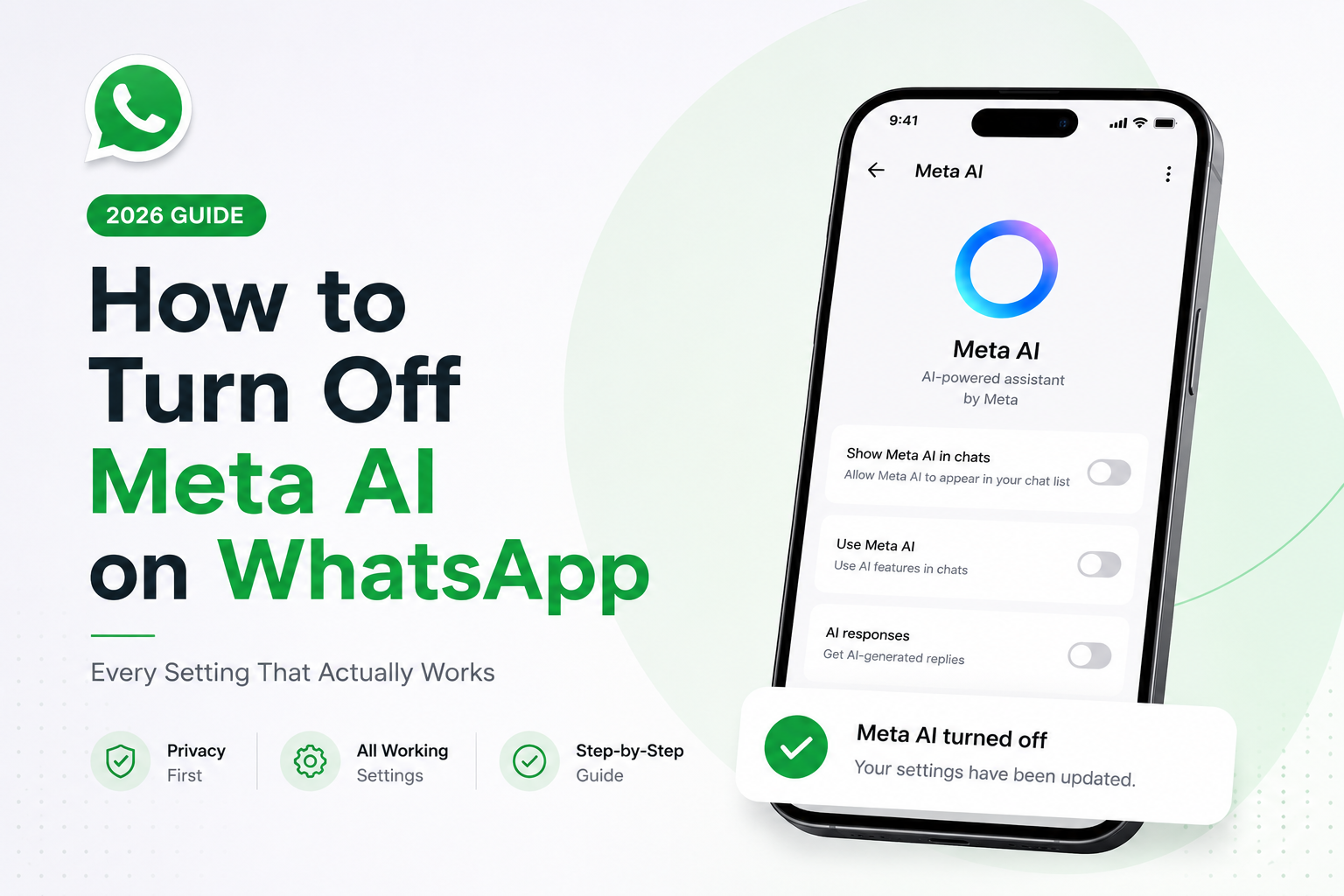
You can’t uninstall Meta AI from WhatsApp there is no single “off” button, and Meta hasn’t built one. But you can hide the blue circle from your chat list, block Meta AI inside any conversation, stop it from ever reading your messages, and wipe what it already knows.
If you’ve seen the blue-and-purple circle floating above your chats and thought “I never asked for this,” you’re not alone. The good news: WhatsApp finally added a real toggle to hide it. The catch: that’s not the same as switching the AI off entirely, and a lot of viral advice about it is flat wrong. This guide covers every control that works right now, on iPhone and Android.
Quick Answer
You cannot remove Meta AI completely — it’s built into the app. But you have four working controls in 2026:
| Control | What it does | How |
|---|---|---|
| Hide the button | Blue circle disappears from your chat list | Settings → Chats → Show Meta AI Button → off |
| Block it per chat | Meta AI can’t be used in that conversation | Chat → tap name → Advanced Chat Privacy → on |
| Never summon it | It stays dormant and reads nothing | Don’t tap the circle, don’t type @Meta AI |
| Wipe its memory | Clears what it remembers about you | Send /reset-ai in the Meta AI chat |
Bottom line: you can make Meta AI invisible and inert, but not delete it. Your personal chats stay end-to-end encrypted the whole time.
Can You Actually Turn Off Meta AI on WhatsApp?
Meta AI is baked into the WhatsApp app itself, the same way the camera or status feature is. There’s no “uninstall assistant” option, and deleting your chat with it doesn’t remove the feature. Meta has confirmed there is no master off switch across its apps.
What changed in your favour is that WhatsApp — unlike Instagram or Facebook — now offers a genuine toggle to hide the Meta AI button, plus a per-chat setting (Advanced Chat Privacy) that stops the AI being used in specific conversations. Combine those with a little discipline and the assistant effectively vanishes from your day-to-day experience.
| You want to… | Possible? | How |
|---|---|---|
| Remove / uninstall Meta AI entirely | No | Not offered by WhatsApp |
| Hide the blue circle button | Yes (phased rollout) | Settings → Chats → Show Meta AI Button → off |
| Block Meta AI inside a chat | Yes | Advanced Chat Privacy (per chat) |
| Stop it reading your messages | Yes — it never does unless summoned | Don’t tap it or tag it |
| Delete what it already knows | Yes | /reset-ai command |
| Opt out of AI training on your data | EU / UK / South Korea only | GDPR “Right to Object” form |
What Meta AI Can and Cannot Do
Meta AI is Meta’s built-in chatbot, powered by its Llama model family and integrated across WhatsApp, Instagram, Facebook and Messenger. Its rapid adoption is also changing how people discover information online, which is one of the biggest reasons AI SEO in 2026, Answer Engine Optimization (AEO) and Generative Engine Optimization (GEO) have become essential for businesses. On WhatsApp it appears in three places: the blue-and-purple circle above your chat list, an “Ask Meta AI” prompt in the search bar, and as a chat contact you can message directly.
What Meta AI CAN do
- Answer questions and hold a conversation when you message it directly.
- Summarise your unread messages — only if you ask it to.
- Generate images from text prompts (not available in the EU version).
- Respond inside a group or chat when someone types @Meta AI.
- Offer suggestions and search results from the WhatsApp search bar.
What Meta AI CANNOT do
- It cannot read your normal chats. Your personal messages and calls are end-to-end encrypted. Meta AI only sees text you deliberately send it, or a message where someone explicitly tags @Meta AI — confirmed by WhatsApp, the Electronic Frontier Foundation and Snopes.
- It is not “always on.” It does nothing until you invoke it.
- It cannot silently pull your contacts, photos or phone data just by existing in the app.
Myth check
A viral message claims that unless you enable Advanced Chat Privacy, Meta AI can read all your conversations. This is false. Meta AI never has access to your end-to-end encrypted chats. Advanced Chat Privacy blocks summoning the AI inside a chat and stops chat export — it isn’t a shield against secret snooping, because that snooping isn’t happening.
How to Turn Off Meta AI on WhatsApp (Step by Step)
Update WhatsApp to the latest version first — several of these settings are region- and version-dependent.
Method 1 — Hide the Meta AI button
This removes the blue circle from your Chats screen and is the closest thing to an off switch. On Android: open WhatsApp → three dots (top-right) → Settings → Chats → scroll to Show Meta AI Button → toggle off. On iPhone: open WhatsApp → Settings (bottom-right) → Chats → Show Meta AI Button → toggle off.
Caveats: the toggle is rolling out in phases, so you may not see it yet. It hides the floating button but, depending on your app version, may not remove the “Ask Meta AI” prompt from the search bar. The label may also change to “Meta AI” or “AI Assistant” in future updates.
Method 2 — Block Meta AI with Advanced Chat Privacy
Use this for any conversation where you never want the AI involved.
- Open the individual chat or group.
- Tap the contact or group name at the top.
- Scroll down and tap Advanced Chat Privacy.
- Toggle it on.
To test it, start typing @Meta in that chat — you should see a notice that Meta AI isn’t available there. When it’s on, WhatsApp blocks three things: invoking Meta AI, exporting the chat, and auto-downloading media to participants’ devices. You must enable it per chat — there is no global switch. In individual chats either person can toggle it; in groups it’s controlled at group level.
Method 3 — Simply never summon it
The most underrated method. Meta AI is dormant by default. If you never tap the circle, never use the AI search prompt and never type @Meta AI, it does nothing and reads nothing. Pair this with Method 1 and you’ll rarely remember it exists.
Alternative Ways to Hide or Reduce Meta AI
Mute, archive or delete the Meta AI chat
Long-press it in your chat list and choose Mute → Until I change it (stops notifications), Archive (removes it from your main inbox, though it can reappear if it messages you) or Delete chat. These are cosmetic: they tidy your inbox but don’t disable the feature, and deleting doesn’t undo anything you already sent.
Reset what Meta AI remembers
Open the Meta AI chat, type /reset-ai and send it. This clears the assistant’s memory of your past interactions. Some regions use /reset-all-ais to clear context across Meta apps.
Change your app language to an unsupported one
Meta AI supports only a limited set of languages. Setting WhatsApp to an unsupported language (Settings → App Language) can make the button disappear — but your entire app changes language, so it’s a niche workaround, not a real fix.
Use Incognito Chat when you do use it
In May 2026, WhatsApp added Incognito Chat with Meta AI, built on “Private Processing.” The conversation runs inside a sealed environment Meta says even its own staff can’t read, and it’s deleted when you close it. Ideal if you want the assistant occasionally but not a permanent log.
Which method should you use?
| Method | Best for | Removes button? | Stops AI in chats? | Effort |
|---|---|---|---|---|
| Show Meta AI Button → off | Cleaning up your interface | Yes | No | 10 sec |
| Advanced Chat Privacy | Sensitive/specific chats | No | Yes (per chat) | Per chat |
| Never summon it | Everyone | No | It stays dormant | Zero |
| Mute / Archive / Delete | Inbox tidiness | No | No | 10 sec |
| /reset-ai | Wiping its memory | No | No | 10 sec |
| Incognito Chat | Private AI use | No | N/A | Per use |
The realistic winning combo: hide the button + turn on Advanced Chat Privacy for anything sensitive + don’t summon it.
Privacy and Data Considerations
Your normal chats stay private
Your one-to-one and group messages are protected by end-to-end encryption and Meta AI cannot read them. It only processes what you explicitly send it, or a message where @Meta AI is tagged — stated by WhatsApp and independently confirmed by the EFF and Snopes.
But what you send to Meta AI is different
Messages you send to the assistant itself are not end-to-end encrypted the way your personal chats are. They’re processed on Meta’s servers and may be used to improve its AI. As of December 2025, Meta also began using AI-chat interactions to personalise ads across its apps. The practical rule: don’t paste anything sensitive into Meta AI. And deleting a chat isn’t “undo” — treat anything you’ve shared as already shared.
Where you live changes your rights
- EU, UK, South Korea: you can file a GDPR-style “Right to Object” request to stop Meta training its models on your public Facebook/Instagram content (Settings → Help → Privacy Policy, or Meta’s Privacy Center). This concerns public posts, not your encrypted WhatsApp chats, which aren’t used for training anyway.
- United States and most other regions: there is currently no opt-out from AI training on data Meta is permitted to use. Anyone selling a US “opt out of Meta AI training” trick is misinformed.
Tightening WhatsApp’s phone permissions — microphone, location, contacts — won’t disable Meta AI, but it reduces what the app can collect overall.
Common Problems and Solutions
| Problem | Solution |
|---|---|
| “I don’t see the Show Meta AI Button toggle.” | It’s rolling out in phases and by region. Update WhatsApp first; until it reaches you, rely on Advanced Chat Privacy and not summoning the AI. |
| “‘Ask Meta AI’ is still in my search bar.” | The hide toggle removes the floating circle, not always the search prompt. There’s no separate switch yet — just don’t type questions into it. |
| “Meta AI keeps replying in my group.” | Someone is tagging @Meta AI. Ask them to stop, or enable Advanced Chat Privacy for that group. |
| “The blue circle came back after an update.” | Updates can reset toggles. Re-check Settings → Chats → Show Meta AI Button after major updates. |
| “Does switching to WhatsApp Business hide it?” | Some users report the circle is absent there, but it isn’t guaranteed or future-proof. Don’t rely on it. |
| “Can I block Meta AI like a contact?” | No — it’s a system feature, not a phone number. Use Advanced Chat Privacy and the hide toggle. |
Key Takeaways
- You can’t fully remove Meta AI, but you can make it invisible and inert.
- Hide the button: Settings → Chats → Show Meta AI Button → off (phased rollout).
- Block it per chat with Advanced Chat Privacy.
- It’s dormant by default and never reads your encrypted chats unless summoned.
- Don’t paste sensitive info into the Meta AI chat — that content isn’t end-to-end encrypted and may be used for ads and training.
- /reset-ai wipes its memory; Incognito Chat leaves no log.
- EU/UK/South Korea users get extra opt-out rights; US users currently don’t.
- Settings change often — recheck after major WhatsApp updates.
Final Verdict
There’s no true “off” button for Meta AI on WhatsApp, and any guide promising one-tap deletion is describing a setting that doesn’t exist. But the workable truth is more reassuring than the panic online suggests: your private chats were never readable by the AI, and WhatsApp now gives you real levers to reclaim your screen. Hide the blue circle, switch on Advanced Chat Privacy where it matters, avoid feeding the assistant anything private, and don’t summon it. Do those four things and Meta AI effectively disappears — even if, technically, it’s still along for the ride. Many of these AI capabilities are part of a broader industry trend that accelerated with the Google I/O 2026 AI Mode and Search Agents announcements.
Frequently Asked Questions
Can I permanently remove Meta AI from WhatsApp?
No. As of 2026, WhatsApp offers no way to uninstall it. You can hide the button, block it inside chats and reset its memory — which for most people achieves the same everyday result.
How do I get rid of the blue circle on WhatsApp?
Go to Settings → Chats → Show Meta AI Button and toggle it off. If you don’t see the option, the toggle hasn’t reached your account yet.
Does Meta AI read my private WhatsApp messages?
No. Your personal chats are end-to-end encrypted. It only reads messages you send it directly, or a message where someone tags @Meta AI.
What does Advanced Chat Privacy actually do?
It blocks Meta AI inside that specific chat, prevents the chat being exported and stops media auto-downloading to participants’ devices. It’s per chat, and it doesn’t stop screenshots or replace encryption.
Is the viral “enable Advanced Chat Privacy or Meta reads everything” message true?
No — it’s false. Meta AI never has access to your encrypted conversations.
How do I delete what Meta AI knows about me?
Open the Meta AI chat, type /reset-ai and send it. It doesn’t undo processing that already happened.
Can EU users turn off Meta AI completely?
EU, UK and South Korean users get stronger rights, including a “Right to Object” form and features like Incognito Chat — but even there the AI can’t be uninstalled. Those controls govern data use, not the assistant’s existence.
Will turning off Meta AI affect my normal WhatsApp features?
No. Hiding the button or enabling Advanced Chat Privacy doesn’t affect messaging, calls, media or encryption.
Sources & Further Reading