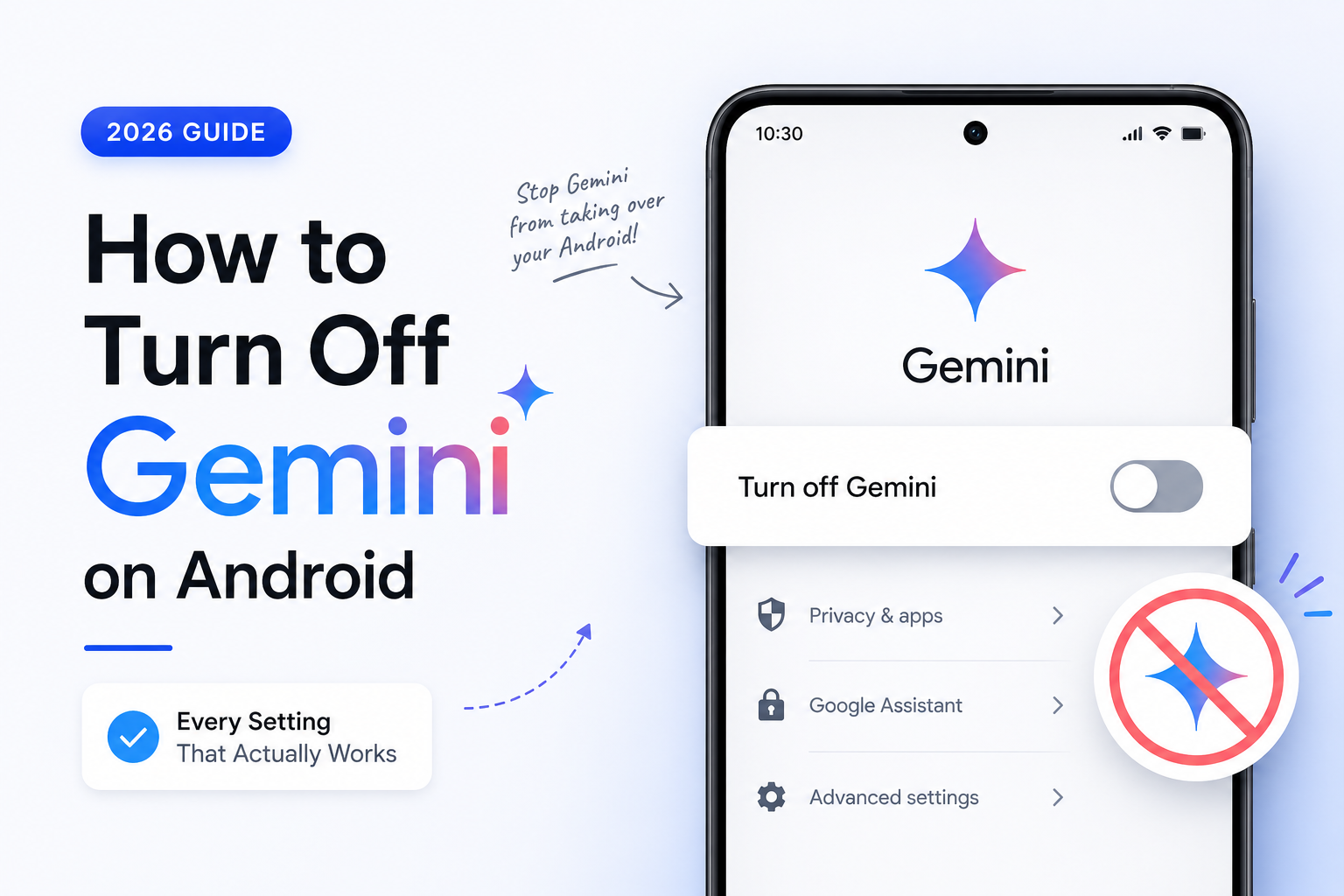
To turn off Gemini on Android, open Settings → Apps → Default apps → Digital assistant app and switch to Google Assistant or None. That stops Gemini from taking over your voice commands and power button. On most phones you can’t fully uninstall Gemini — it ships as a system app, so you can only disable it — and turning off the assistant does not stop data collection, which is a separate setting called Gemini Apps Activity. This guide covers every control that works right now on stock Android, Pixel, and Samsung, and tells you honestly what each one does.
If Gemini showed up on your phone uninvited, replaced Google Assistant, or keeps launching when you hold the power button, you’re running into the biggest Android change of the last year: Google has been swapping Assistant out for Gemini as the default assistant, a rollout that ran through 2025 and into 2026. The frustrating part is that there’s no single “off” switch — Gemini lives in several places, each with its own toggle. Let’s go through all of them.
Quick Answer
How do you turn off Gemini on Android? There’s no single off switch, but these are the controls that work in 2026:
| Control | How |
|---|---|
| Change your assistant | Settings → Apps → Default apps → Digital assistant app → Default digital assistant app, then choose Google Assistant or None. |
| Stop it launching | Settings → System → Gestures → Press & hold power button, and pick an action that isn’t the digital assistant. |
| Turn off “Hey Google” | In the Gemini app → profile → Settings → hands-free, switch off voice activation. |
| Disable the app | Long-press the Gemini icon → App info → Disable (most phones can’t fully uninstall it). |
| Stop data tracking | Go to myactivity.google.com → Gemini Apps Activity and turn it off (this is separate from disabling the assistant). |
Bottom line: you can stop Gemini from acting as your assistant and stop it recording your activity, but on most Android phones you can only disable it, not remove it entirely.
Can You Actually Turn Off Gemini on Android?
Short answer: You can disable Gemini and switch away from it, but on most phones you cannot fully uninstall it, and no single setting turns it off everywhere.
Here’s why this is confusing. Google didn’t put Gemini in one place. It spread across several layers of your phone and Google account, and each layer has its own control:
- The device assistant (what answers “Hey Google” and the power-button hold)
- The Gemini app itself
- Gmail and Workspace smart features
- Chrome
- Google Search (AI Overviews)
This article focuses on the Android layers — the assistant and the app — because that’s where “turn off Gemini on Android” usually points. For Gmail, Chrome, and Search, see the related guides at the end.
The other reason it’s confusing is the ongoing Assistant-to-Gemini transition. Google announced in March 2025 that Gemini would replace Google Assistant as the default mobile assistant, a transition that also reshaped AI-powered search experiences across Android and Google Search, and that changeover largely wrapped up on Android in early 2026, with classic Assistant being wound down. So the popular advice to “just switch back to Google Assistant” still works on many phones today, but treat it as a reprieve, not a permanent home — Google is retiring the old Assistant over time.
Here’s the honest breakdown of what’s possible:
| You want to… | Is it possible? | How |
|---|---|---|
| Switch away from Gemini as your assistant | Yes | Set default assistant to Assistant or None |
| Stop it launching on power button / voice | Yes | Remap the power button, turn off “Hey Google” |
| Disable the Gemini app | Yes | App info → Disable |
| Fully uninstall Gemini | Only sometimes | Possible if you installed it from the Play Store; not on most preinstalled/system versions |
| Switch back to classic Google Assistant | For now | Being phased out on mobile |
| Stop data collection / AI training | Separate setting | Turn off Gemini Apps Activity |
So the realistic goal isn’t “delete Gemini from existence.” It’s “make Gemini stop acting as my assistant and stop recording my activity.” That’s fully achievable, and for most people it’s the outcome they actually want.
What Gemini on Android Can and Cannot Do
Knowing what Gemini actually touches helps you decide how far to lock it down.
What is Gemini on Android?
Gemini is Google’s generative AI assistant (formerly Bard), now the default digital assistant on most Android phones. It replaces Google Assistant for tasks like answering questions, setting reminders, controlling apps, and hands-free voice commands, and it can also plug into Gmail, Calendar, Maps, Docs, and Drive through “extensions” or connected apps.
What Gemini CAN do
- Act as your phone’s assistant via “Hey Google,” a power-button hold, or a launcher shortcut.
- Take device actions such as calling or messaging through connected apps.
- Connect to Google services — with the right permissions it can read and summarize Gmail, pull Calendar events, fetch Drive files, and use your Maps addresses.
- Process text, voice, images, and screenshots you share with it.
What Gemini CANNOT do (once you disable it)
- It can’t intercept your voice or power button after you switch your default assistant to Assistant or None.
- It can’t act on Gmail, Calendar, or Drive if you revoke its connected-app access.
- It won’t launch by voice once “Hey Google” is off.
The important nuance: Gemini’s reach depends on permissions and connected apps. It isn’t silently reading everything by default — but if you granted it access (or accepted the defaults), it can reach a lot of sensitive Google data. Turning it off cuts that reach; turning off Gemini Apps Activity cuts what Google stores from your interactions. Those are two different levers, and you generally want both.
How to Turn Off Gemini on Android (Step by Step)
Menu names vary by manufacturer and Android version. If a path doesn’t match your phone exactly, use the Settings search box and search for “digital assistant.”
Method 1 — Switch your default assistant away from Gemini (the main fix)
This stops Gemini from responding to “Hey Google” and the power-button hold.
On stock Android / Google Pixel:
- Open Settings.
- Tap Apps → Default apps.
- Tap Digital assistant app → Default digital assistant app.
- Select Google Assistant (to switch back) or None (for no assistant at all).
From inside the Gemini app (any phone):
- Open the Gemini app.
- Tap your profile picture / initial (or the menu).
- Tap Switch to Google Assistant, then confirm.
On Samsung (One UI), Xiaomi (HyperOS), Oppo (ColorOS): The menu may differ. Try:
- Open the Google app.
- Tap your profile photo (top right) → Settings.
- Find Digital assistants from Google and choose your assistant.
Or: Settings → Apps → Choose default apps → Digital assistant app.
Choosing “None” removes the assistant entirely — good if you want zero AI assistant. Choosing “Google Assistant” keeps a voice assistant without Gemini, but remember Assistant is being retired on mobile, so this option may disappear on future updates.
Method 2 — Stop Gemini from launching on the power button
Even after switching assistants, a long-press of the power button may still try to open an assistant. Remap it.
- Open Settings → System → Gestures.
- Tap Press & hold power button.
- Choose an action that isn’t “Digital assistant” — for example, Power menu.
Method 3 — Turn off “Hey Google” and lock-screen access
To stop voice activation and keep Gemini off your lock screen:
- Open the Gemini app.
- Tap your profile → Settings.
- Find the hands-free / voice option (often “Talk to Gemini hands-free”) and turn off “Hey Google.”
- In the same settings area, turn off “Use Gemini without unlocking” so it can’t be triggered from a locked phone.
Method 4 — Disable (or uninstall) the Gemini app
If you can uninstall it (installed from the Play Store): long-press the Gemini icon → App info → Uninstall, or uninstall from the Play Store.
If you can only disable it (preinstalled system app — common on Samsung and many others):
- Long-press the Gemini icon → App info (or Settings → Apps → Gemini).
- Tap Disable.
Disabling greys out the app: no launches, no overlays, no notifications. It stays on the device as a package, and — this is the most common complaint in forums — system updates sometimes re-enable it, especially on Samsung phones. Recheck after major updates.
Alternative Ways to Hide or Reduce Gemini
If you want to keep Gemini but tame it, or you can’t fully remove it, these help.
Turn off Gemini Apps Activity (the data setting that actually matters)
Disabling the assistant does not stop Google from saving your interactions. That’s controlled separately:
- Go to myactivity.google.com (or Gemini app → profile → Gemini Apps Activity).
- Turn Gemini Apps Activity off.
- Delete existing history from the same screen.
Note: even with Activity off, new chats can still be kept for up to 72 hours to run the service, and content sent for human review may be retained for up to 3 years. Turning off features ≠ turning off data collection — this setting is the closest you get.
Revoke connected apps and permissions
Limit what Gemini can reach:
- In the Gemini app, review connected apps / extensions (Gmail, Calendar, Maps, Drive, etc.) and switch off any you don’t want.
- In Settings → Apps → Gemini → Permissions, revoke microphone, location, and other access.
Remove it from your launcher
Long-press the icon and remove it from the home screen, or disable it (Method 4) to grey it out. This declutters your screen even if the package stays.
Comparison: which method should you use?
| Method | What it stops | Removes the app? | Effort |
|---|---|---|---|
| Switch default assistant | Voice + power-button takeover | No | 30 sec |
| Remap power button | Accidental launches | No | 20 sec |
| Turn off “Hey Google” | Voice activation | No | 30 sec |
| Disable the app | All Gemini activity on device | Disables, not uninstalls | 20 sec |
| Uninstall | Everything (if allowed) | Yes (Play Store installs) | 20 sec |
| Turn off Gemini Apps Activity | Data logging / training | No | 1 min |
| Revoke connected apps | Access to Gmail/Calendar/etc. | No | 2 min |
The realistic winning combo: switch your assistant to Assistant or None + remap the power button + turn off Gemini Apps Activity. Add “disable the app” if you never want to see it again.
Privacy and Data Considerations
This is the part most guides skip, and it’s the reason to bother at all.
Disabling Gemini ≠ stopping data collection
Switching your assistant away from Gemini changes the feature layer — what responds to your voice and button presses. It does not stop Google from storing what you’ve already shared. That’s Gemini Apps Activity, a separate account-level setting. If privacy is your goal, turning off the assistant without turning off Activity misses the point, especially as AI assistants become a bigger part of modern search and user experiences. For businesses, these AI-driven changes are also transforming how SEO services help websites remain visible across traditional search engines and AI-powered answer platforms.
What Gemini can access with permission
According to Google’s own privacy documentation, when you use Gemini and grant access, your chats, voice recordings, uploaded images, screenshots, and connected-app content can be used to provide, improve, develop, and personalize Google’s services — which includes training machine-learning models. Connected apps can expose sensitive material: emails about finances or health, calendar entries like medical appointments, documents in Drive, and your saved home/work addresses in Maps. Revoking those connections limits the exposure.
Even “off” isn’t fully off
With Gemini Apps Activity disabled, Google says new conversations may still be retained for up to 72 hours to run the service, and reviewed content can be kept for up to three years. Google also states it may process interactions to create anonymized data. This is worth knowing so you don’t assume “off” means “nothing leaves my phone.”
Workspace and paid accounts
If you’re on a Google Workspace (work or school) account, you may not be able to fully turn Gemini off yourself — it’s controlled by your organization’s admin. And on some plans, Gemini was bundled into the price, so disabling it doesn’t remove the charge.
If you want stronger guarantees
For maximum control, options include using Google services less, choosing a non-Gemini assistant, or, for the privacy-focused, a de-Googled Android variant. These are bigger commitments, but they’re the only ways to go beyond what the built-in toggles offer.
Common Problems and Solutions
| Problem | Solution |
|---|---|
| “Gemini came back after a system update.” | This is the most common complaint, especially on Samsung. Updates can re-enable a disabled system app or reset your default assistant. After major updates, recheck Default apps → Digital assistant app and re-disable Gemini if needed. |
| “There’s no ‘Switch to Google Assistant’ option.” | On phones where Google has completed the transition, classic Assistant may no longer be available. Your choices there are Gemini or None. Choose None if you want no assistant at all. |
| “I can only Disable, not Uninstall.” | Gemini is a system app on most phones, so the OS only offers Disable. That’s expected and still effective — it stops the app from running. Full removal without disabling is generally not possible through settings alone. |
| “Gemini still shows up in Gmail / Chrome / Search.” | Those are separate surfaces with separate toggles. Turning off the Android assistant doesn’t touch them. Turn off Gmail’s Smart features, Chrome’s Gemini settings, and use the Search workaround for AI Overviews — see the related guides below. (Heads-up: turning off Gmail Smart features can also disable Smart Compose, Smart Reply, and some inbox sorting.) |
| “The power button still opens an assistant.” | Remap it: Settings → System → Gestures → Press & hold power button → choose Power menu or another non-assistant action. |
| “I switched to None but lost voice control.” | That’s expected — “None” means no assistant at all. If you want voice control without Gemini, pick Google Assistant instead while it’s still offered on your device. |
Frequently Asked Questions
Can I completely uninstall Gemini from my Android phone?
On most phones, no. Gemini ships as a system app, so you can only disable it, not uninstall it. If you installed the Gemini app yourself from the Play Store, you can uninstall it like any other app.
How do I switch back to Google Assistant?
Go to Settings → Apps → Default apps → Digital assistant app → Default digital assistant app and choose Google Assistant, or open the Gemini app, tap your profile, and select Switch to Google Assistant. Note that Google is retiring classic Assistant on mobile, so this option may not last.
Does turning off Gemini stop Google from collecting my data?
No. Disabling the assistant is separate from data collection. To stop your interactions being saved and used, turn off Gemini Apps Activity at myactivity.google.com and delete your existing history.
Why does Gemini keep turning back on after updates?
System updates can re-enable disabled system apps or reset your default assistant, a frequent issue on Samsung devices. Recheck your assistant and app settings after major updates.
How do I stop Gemini from opening when I hold the power button?
Go to Settings → System → Gestures → Press & hold power button and select an action other than the digital assistant, such as Power menu.
Will disabling Gemini break other features?
Disabling the assistant only affects assistant functions (voice commands, device actions). However, if you also turn off Gemini in Gmail via Smart features, you may lose Smart Compose, Smart Reply, and some inbox organization.
Can I turn off Gemini on a Samsung phone?
Yes. Change your default assistant via Settings → Apps → Choose default apps → Digital assistant app, or through the Google app’s Digital assistants from Google setting. You can disable the Gemini app, but on Samsung it usually can’t be fully uninstalled.
Is Gemini replacing Google Assistant permanently?
Yes, that’s Google’s direction. The Assistant-to-Gemini transition on Android largely completed in early 2026, and classic Assistant is being phased out on mobile. Switching back is a temporary option, not a guaranteed long-term one.
Key Takeaways
- No single off switch: Gemini lives across the assistant, the app, Gmail, Chrome, and Search — each has its own control.
- Main fix: set your default digital assistant to Google Assistant or None.
- Stop launches: remap the power button and turn off “Hey Google.”
- Most phones can only disable, not uninstall Gemini (it’s a system app).
- Switching back to Assistant is temporary — Google is retiring it on mobile.
- Disabling ≠ privacy: turn off Gemini Apps Activity separately to stop data logging.
- Updates can re-enable it, especially on Samsung — recheck after upgrades.
- Workspace users may need an admin to turn it off.
Final Verdict
You can’t wipe Gemini off most Android phones, and Google clearly doesn’t want you to — it’s the default assistant now, and classic Google Assistant is on its way out. But you can absolutely stop Gemini from behaving like your assistant: switch the default to Assistant or None, remap your power button, kill “Hey Google,” disable the app, and — the step that actually protects your privacy — turn off Gemini Apps Activity. Do those, and Gemini goes quiet even if it technically stays installed.
If your business is preparing for AI-powered search or needs expert guidance on improving its online visibility, contact our team to discuss the right digital strategy.
If you have hands-on experience with AI, Android, or emerging technology? You can also write for DengoWeb and share your knowledge with our readers.
Looking for more practical AI tutorials and technology explainers? Browse the latest articles on the DengoWeb Blog.
Because Google reshuffles these menus and re-enables features through updates, bookmark this page and recheck your settings after any big Android update.
Related guides
Sources & further reading (authoritative)