Your password is no longer enough. Passwords get reused, guessed, leaked in breaches, and stolen through fake login pages every day — and once someone has yours, they can walk straight into your email, bank, or social accounts in seconds.
Two-factor authentication (2FA) is one of the simplest, most powerful ways to stop that. This guide explains what it is, how it works, which methods are safest, and how to set it up — in plain language, no cybersecurity background needed.
What Is Two-Factor Authentication?
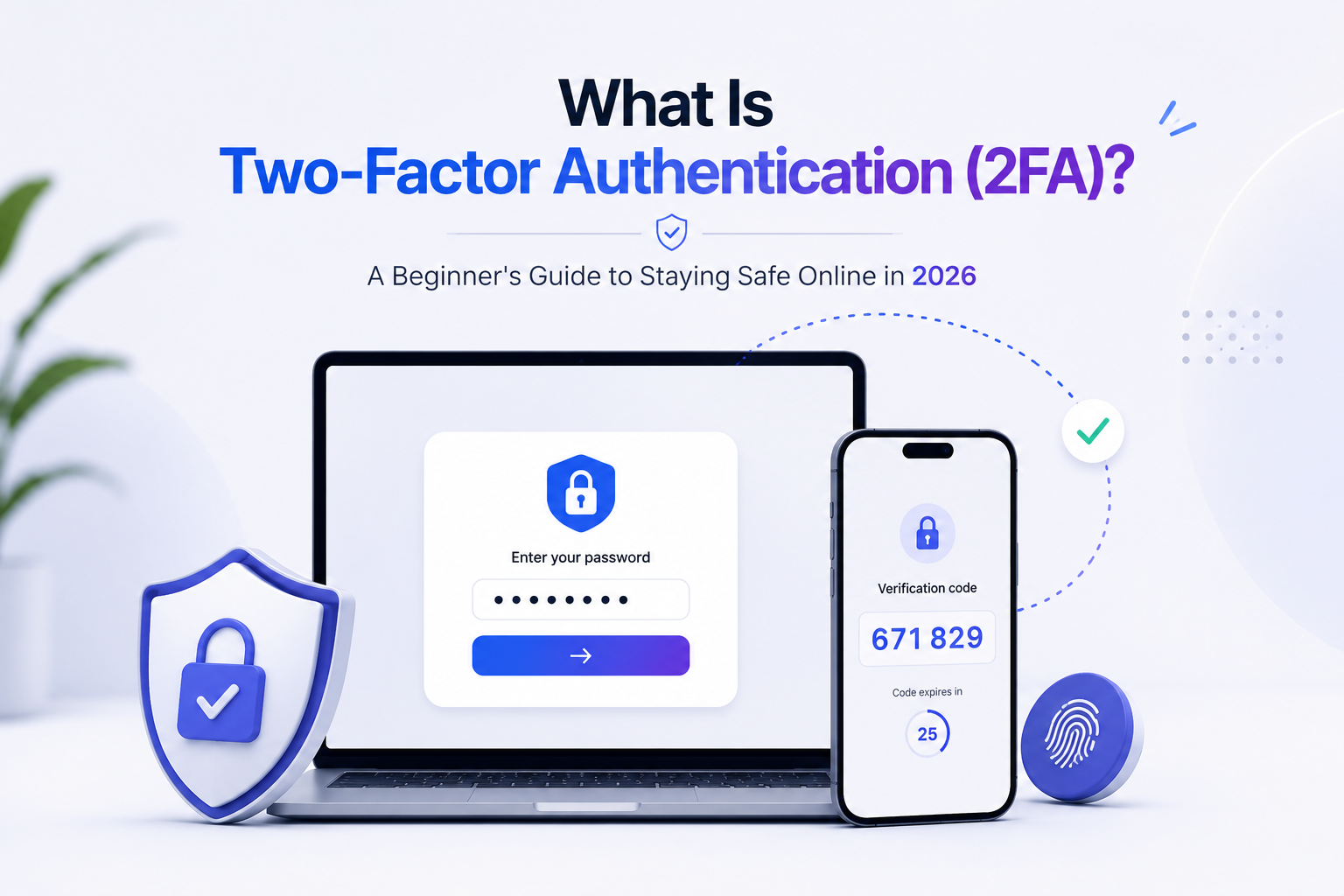
2FA is a security feature that asks you to prove who you are in two different ways before you can log in. Instead of just typing your password, you confirm your identity with a second step — usually a code from your phone or an app. Even if a hacker steals your password, they can’t get in without that second proof.
Think of a bank withdrawal that needs both your card and your PIN — one without the other is useless. 2FA brings that “two locks instead of one” idea to your online accounts. You may also see it called two-step verification; for everyday purposes they mean the same thing: a second checkpoint after your password.
How Does 2FA Work?
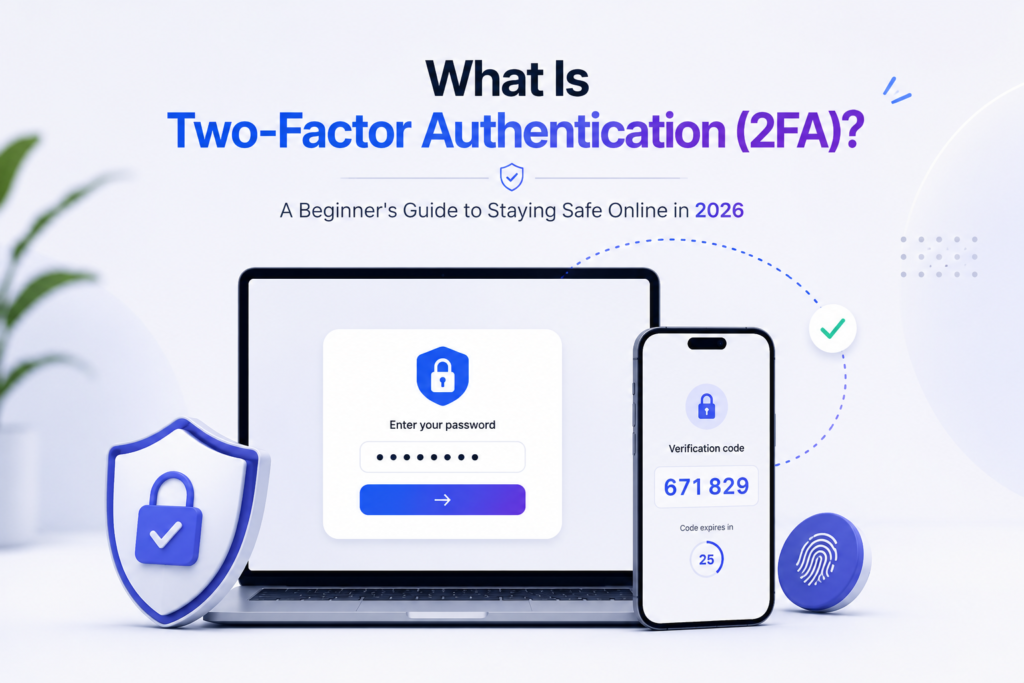
At its simplest, you enter your password (the first factor), the service asks for a second proof — a six-digit code, a tap on your phone, or a fingerprint — and you’re only logged in if both steps check out. The magic is that the second factor is something an attacker on the other side of the world usually can’t produce: they might know your password, but they don’t have your phone in their hand. That one extra step blocks the vast majority of automated attacks.
Why Do You Need 2FA?
Passwords are the weakest link. People reuse them across sites, so one leak can unlock dozens of accounts, and attackers run automated tools that test millions of stolen combinations from old breaches — a trick called credential stuffing. 2FA breaks that chain: even if your password is exposed, the attacker hits a wall at the second step. It’s also worth being careful about what data you enter into websites and AI tools in the first place.
For most people, turning on 2FA is the single biggest security upgrade you can make in five minutes — especially on your email, which is the master key that can reset the passwords for everything else.
The Three Types of Authentication Factors
Every login factor falls into one of three categories. Real 2FA combines two different categories — not two of the same.
| Category | Examples |
|---|---|
| Something you know | Password, PIN, security question |
| Something you have | Your phone, an authenticator app, a physical security key |
| Something you are | Fingerprint, face, or other biometric |
A password plus a phone code is true 2FA (know + have). A password plus a security question is not — both are things you know.
Which 2FA Method Is Most Secure?
There are several ways to receive that second factor, and they aren’t equally safe. Here’s how the common methods compare.
| Method | Security | Phishing Resistance | Ease of Use | Best For |
|---|---|---|---|---|
| SMS text code | Low | No | Very easy | Basic accounts; better than nothing |
| Email code | Low–Medium | No | Very easy | Secondary / low-risk accounts |
| Authenticator app (TOTP) | Medium–High | Usually no | Easy | Most everyday users |
| Push notification | Medium–High | Depends | Very easy | Convenience on trusted devices |
| Hardware security key | Very High | Yes | Easy after setup | High-value accounts |
| Passkey | Very High | Yes | Very easy | Modern, password-free sign-in |
In plain terms: an authenticator app like Google Authenticator or Microsoft Authenticator generates a fresh six-digit code every 30 seconds (a time-based one-time password, or TOTP) and is a strong, free default for most people. A hardware key like a YubiKey is a small device you plug in or tap and is very hard to fool. Passkeys are a newer, password-free option covered below.
Is SMS 2FA Safe?
SMS 2FA is far better than nothing, but it’s the least secure method. Texts can be intercepted or redirected, and attackers can trick a phone company into transferring your number to a new SIM — a scam called SIM swapping — after which your codes go straight to them. The rule: if a service offers an authenticator app or security key, choose that, and keep SMS as a backup or for low-risk accounts.
2FA vs. MFA vs. Two-Step Verification
| Term | What It Means |
|---|---|
| 2FA | Exactly two factors from two different categories |
| MFA | Umbrella term for two or more factors — all 2FA is MFA, but MFA allows more layers |
| Two-step (2SV) | Two steps in sequence — but they could be the same type (e.g. password + security question) |
The useful rule: all true 2FA is two-step, but not all two-step is true two-factor. What matters most for safety isn’t the label it’s whether your methods resist phishing.
Can 2FA Be Hacked?
Yes, in some cases but it’s still one of the best protections you can turn on. Most successful attacks don’t break the technology; they trick the person:
| Attack | How It Works |
|---|---|
| SIM swapping | Hijacking your phone number to steal SMS codes |
| Phishing (real-time relay) | A fake login page captures your password and code, then instantly uses them |
| MFA fatigue | An attacker spams approval prompts hoping you’ll tap “Approve” out of annoyance |
Because your phone number and mobile device can reveal sensitive information about you, it’s also worth understanding how location-sharing tools work and reviewing which apps have access to your location.
The good news: hardware security keys and passkeys are “phishing-resistant” they only work on the genuine website and don’t rely on a code you could be tricked into handing over. If an account really matters, use one of these.
What If You Lose Your Phone?
Losing the phone shouldn’t mean losing your accounts. Since your phone also holds AI features and connected services that raise separate privacy questions, it’s worth reviewing the privacy controls on your device, including Apple Intelligence settings on supported iPhones. Set these safeguards up before you lose your phone:
| Safeguard | What It Does |
|---|---|
| Save your backup codes | One-time recovery codes let you log in if your phone is gone store them offline |
| Register more than one factor | E.g. an app plus a spare security key, so one lost device never locks you out |
| Use an app with encrypted backup | Lets you securely restore your codes on a new phone |
How to Set Up 2FA (Step by Step)
The wording varies by site, but the process is almost always the same:
| Step | Action |
|---|---|
| 1 | Go to Settings → Security (or “Password & Security”) |
| 2 | Find Two-Factor / Two-Step Verification and select it |
| 3 | Choose your method an authenticator app is a great default |
| 4 | Open your app, add an account, and scan the QR code shown |
| 5 | Enter the six-digit code to confirm it’s linked |
| 6 | Save your backup codes somewhere safe |
Start with your most important accounts first: email, banking, cloud storage, and main social media email especially, since it can reset almost everything else. For messaging apps you use daily, it’s also worth reviewing their privacy and AI settings, such as Meta AI on WhatsApp.
What About Passkeys?
A passkey is a newer, password-free way to log in. Instead of a password plus a code, you unlock your account using your device and something like your fingerprint, face, or PIN. Behind the scenes it uses cryptography tied to the real website, which makes passkeys strongly resistant to phishing a fake site simply can’t use them.
Depending on setup, passkeys can satisfy multi-factor requirements on their own, because they combine something you have (your device) with something you are or know (fingerprint, face, or PIN). They aren’t exactly traditional 2FA they’re a modern sign-in method that can offer even stronger protection. Where a site offers passkeys, they’re usually the safest and easiest option. If you’re on Android, it’s also worth reviewing the security and AI controls on your device, including Gemini settings on Android.
Is 2FA Still Worth It in 2026?
Yes and arguably more than ever. Passwords keep leaking, phishing keeps getting more convincing, and attacks are increasingly automated. 2FA remains one of the cheapest, fastest ways to make your accounts dramatically harder to break into. The only real change is which method to prefer: lean toward authenticator apps, security keys, or passkeys over SMS where you can.
Frequently Asked Questions
What is 2FA in simple terms?
It’s a second security check when you log in. After your password, you confirm it’s really you usually with a code from your phone or app so a stolen password alone isn’t enough to break in.
What’s the safest 2FA method?
Hardware security keys and passkeys are the safest because they resist phishing. For most people, an authenticator app is a strong, free, everyday choice.
Is an authenticator app better than SMS?
Yes. Authenticator codes can’t be intercepted or stolen through SIM swapping the way text messages can, so they’re notably safer.
Do I need 2FA on every account?
Start with the important ones email, banking, cloud storage, and main social accounts. Your email matters most because it can reset your other passwords.
What if I lose the phone with my 2FA?
Use the backup/recovery codes you saved during setup, or a second registered method, to get back in. Always set these up in advance.
Final Thoughts
Two-factor authentication turns your accounts from a single locked door into two and that second lock stops the overwhelming majority of attacks. You don’t need to be technical to use it. Turn it on for your email today, choose an authenticator app or passkey over SMS when you can, and save your backup codes. It’s five minutes of setup for a huge upgrade in peace of mind.
New to authenticator apps? See our companion guide comparing Google Authenticator, Microsoft Authenticator, and Authy to pick the right one for you.