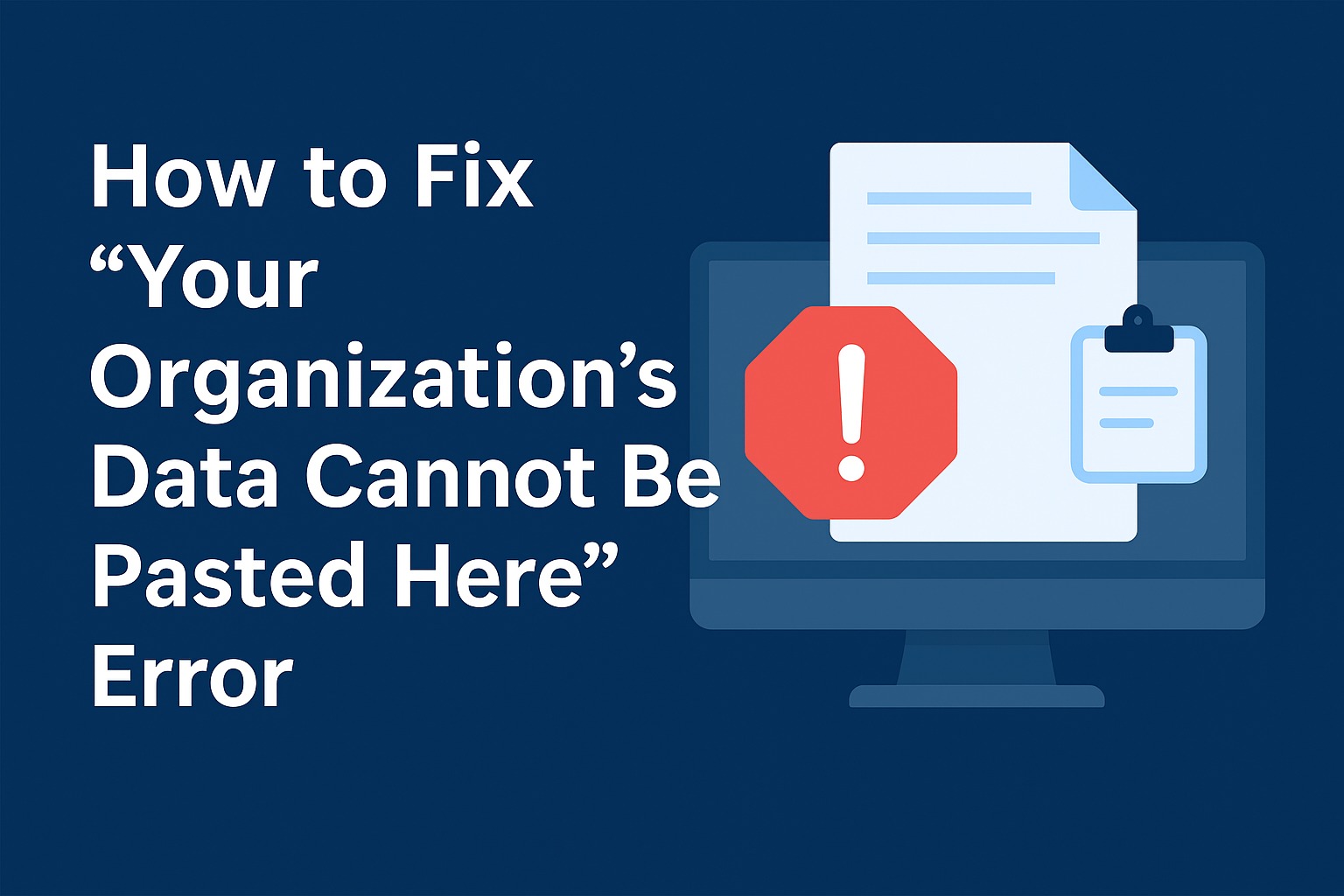
To solve any error, first, we need to identify the reason behind its occurrence, and “Your Organization’s Data Cannot be Pasted Here” is not an exception, so let’s begin our post by understanding the possible reasons behind this error and how to resolve it quickly all in this guide.
What Causes This Error?
This error usually appears when you try to paste copied data in Microsoft Office apps like Word or Excel. In this case it happens more because of the Microsoft Intune Policy as it restricts data transfer between apps to protect sensitive data. For example, copying from Word and pasting into Excel might trigger this message.
Another possibility of this error occurrence is because of outdated Microsoft office applications as the older versions may not support the recent security policies effectively.
Lastly, this error might also occur due to character pasting limits as some applications limit the amount of data you can paste at once. (e.g., 50, 100, or 200 characters).
How to Fix “Your Organization’s Data Cannot be Pasted Here” Error
Here is the Step-by-Step Flow for Fixing the Error -YourOrganization’s Data Cannot be Pasted Here
1. Update Your Microsoft Office Apps
- Open any Microsoft Office app (Word, Excel, etc.)
- Click File > Account
- Under Update Options, click Update Now to get the latest version
2. Adjust Intune Protection Policies
- Now go to endpoint.microsoft.com and sign in
- Navigate to Apps > App Protection Policies
- Create or edit a policy
- Under Data Protection > Data Transfer, adjust settings to allow pasting between apps
3. Use a New Document
- Close the current document
- Create a new file and try pasting again
Additional tips to consider
- You should check with your IT administrator in case you don’t have access to Intune settings.
- If there are character limits enforced do avoid pasting large amounts of text.
- Regularly update your software to prevent any kind of compatibility issues.
Conclusion
The “Your Organization’s Data Cannot be Pasted Here” error is a security feature designed to protect company data. It is a solvable error and can be fixed by updating your apps, adjusting Intune policies, or creating new files efficiently. Share this guide with your team to help everyone stay productive!

Pooja Thakkar is a passionate content writer at DengoWeb, where she crafts engaging and SEO-friendly content tailored to the digital world. With a keen eye for detail and a love for storytelling, she specializes in creating blogs, web copy, and marketing content that drives traffic and builds brand authority. When she’s not writing, Pooja loves exploring the latest trends in tech and digital marketing to bring fresh ideas to every piece she creates.